Set up Wi-Fi monitoring for your Deye solar system using the SolarMan app. Track generation, consumption, battery status, and savings from your phone.
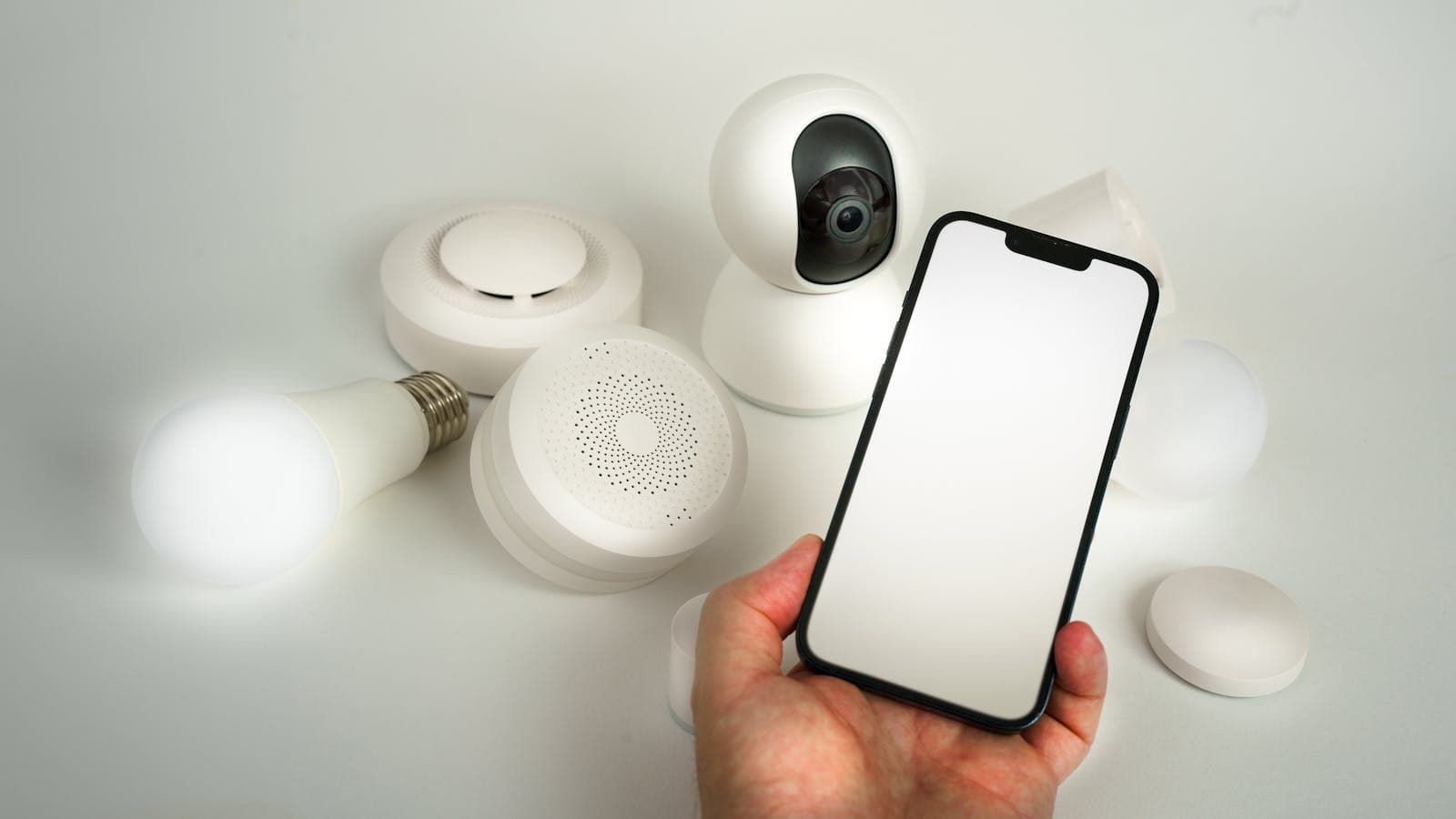
Monitoring your solar system remotely is essential for maximising performance and catching issues early. Deye hybrid inverters include built-in Wi-Fi that connects to the SolarMan cloud platform, giving you real-time data on your phone or computer.
What You Can Monitor
- Solar generation: Real-time and historical power production from your panels
- Home consumption: How much power your home is using right now
- Battery status: State of charge (SOC), charging/discharging rate, temperature
- Grid interaction: How much you are importing from or exporting to DEWA
- Daily/monthly/yearly summaries: Track trends and savings over time
- Error alerts: Instant notifications if something goes wrong
Setting Up SolarMan
Step 1: Download the App
Download "SolarMan Smart" from the App Store (iOS) or Google Play (Android). Create a free account with your email.
Step 2: Connect to Inverter Wi-Fi
Your Deye inverter broadcasts a Wi-Fi hotspot named "AP_xxxxxxxx" (where x is the serial number). Go to your phone's Wi-Fi settings and connect to this network. Default password is "12345678".
Step 3: Configure Home Wi-Fi
Open the SolarMan app, tap "Add Device", and scan the QR code on your inverter. The app will prompt you to enter your home Wi-Fi credentials. The inverter will switch from hotspot mode to your home network.
Step 4: Verify Connection
After 2-3 minutes, the inverter's Wi-Fi indicator light should turn solid green. Open the SolarMan app and verify that real-time data is appearing. If not, check that your Wi-Fi router is within range (maximum 15 metres through one wall).
Key Features to Use
Time-of-Use Scheduling
Programme your battery to charge during off-peak hours and discharge during peak DEWA tariff periods. This maximises savings beyond what solar alone provides.
Battery Management
Set minimum SOC limits to ensure backup power is always available. For UAE homes, we recommend keeping a minimum 20% reserve for emergency backup during grid outages.
Alert Configuration
Enable push notifications for inverter errors, low battery, grid outage, and abnormal production drops. Early detection of panel shading or inverter faults saves money.
Troubleshooting Wi-Fi Issues
- Inverter not connecting: Ensure your router uses 2.4 GHz (not 5 GHz). Deye Wi-Fi modules only support 2.4 GHz.
- Intermittent connection: Move your Wi-Fi router closer or add a Wi-Fi extender. The inverter typically needs -70 dBm or better signal strength.
- App shows offline: Reset the Wi-Fi module by holding the reset button for 5 seconds, then reconfigure.
Frequently Asked Questions
How do I connect my Deye inverter to Wi-Fi?
Can I monitor my Deye solar system from my phone?
Why is my Deye inverter showing offline in the app?
Ready for a personalized quote?
WhatsApp us — average reply time under 15 minutes.